-1.jpg?width=93&height=26&name=trellis%20logo@2x%20(2)-1.jpg)
Ask research questions about your research questions to
- Documents Tab
- Docket Tab
- Rulings
AI tools are not available for family cases, and this restriction also applies to all documents related to family matters.
What Is Search Results Chat?
Search Results Chat lets you ask targeted questions about the dockets and documents returned by your search. Instead of manually opening and reviewing each court filing one by one, Trellis automatically analyzes your results (up to 25 results at a time) and provides:
- A short answer summarizing the findings.
- A link to the relevant docket or documents that best match your question.
- An explanation of why each answer is relevant.
Why Use It
- Faster research: Skip opening every document.
- Smarter insights: Understand trends and connections across filings.
- Higher accuracy: Go beyond keyword matches and get context-based answers.
How to Access
- Perform a search in Trellis Smart Search > Click the Documents tab.
/Screenshot%202025-10-31%20at%204.32.08%20PM.png?width=670&height=142&name=Screenshot%202025-10-31%20at%204.32.08%20PM.png)
2. Your screen will split, with your document results on the left and Search Results Chat on the right.
3. Type your question into the chat input box and press Enter.
4. Each response includes links to the most relevant documents, which you can open in new tabs to verify the answer and dive deeper into your research.
/Screenshot%202025-10-31%20at%204.33.23%20PM.png?width=670&height=277&name=Screenshot%202025-10-31%20at%204.33.23%20PM.png)
Perform a search in Trellis Smart Search > Click the Dockets tab.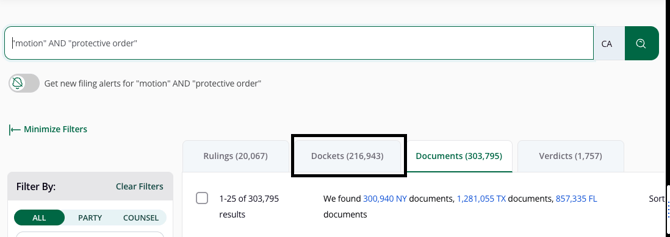
Pro-Tips
- The chat will review 25 results per page from your search results.
- When you apply or change filters, your search context updates, and you will need to resubmit the same question to refresh the answer.